Managing Exchange Server Distributions groups using PowerShell

If you happen to have 300+ distribution groups on your Exchange Server, you are bound to end with the same problem I had a few days ago. The problem was a pretty straightforward. I had to first find all the distribution groups that had a specific user as a Manager and than grant manager rights to another user without loosing the other Managers. If you try it from the Exchange Management Console, you can bulk edit the Managed By field, but as soon as you start typing the name of the additional manager you are going to lose the previous Managed By entries.

The solution was to use the Exchange Management Shell and PowerShell to bulk edit the distribution groups.

The easiest way to do it by first selecting all the groups that have the user as their Manager:

Get-DistributionGroup | where {$_.ManagedBy -like “*Ugrin*”}

You can save it in a file just as a backup so you will have something to compare with after you make the changes.

You can than pipe the list of Distribution Groups into a Set-DistributionGroup command that would make the change for every distribution group.

Get-DistributionGroup | where {$_.ManagedBy -like “*Ugrin*”} | Set-DistributionGroup -ManagedBy ugrin@domain.com, vojdan@domain.com

Just make sure that you include the original user as a manager so you wouldn’t have to add it again in the end.

The same syntax can be used for adding members to a distribution group when you know the manager.

Get-DistributionGroup | where {$_.ManagedBy -like “*Ugrin*”} | Add-DistributionGroupMember -Member vojdan@domain.com,lili@domain.com


 

Posted in Exchange Server 2007, Exchange Server 2010, Exchange Server 2013, PowerShell | Tagged , , , | Leave a comment

SharePoint 2013 Azure Access Connections error when using Windows Live ID authentication

The problem exists only when you use Windows Live ID as your authentication mechanism for SharePoint authentication. If you click the Windows LiveID  Icon for authentication nothing happens and you are reverted to the default SignIn page for SharePoint 2013.

If you check the Event Viewer Application Log you will see the following error:


EventViewer01


The description doesn’t say much except that the trusted login provider (in this case it is the Azure ACS service) has supplied a token that was not accepted by the SharePoint Server:EventViewer02


When you setup your SharePoint environment you will most probably use the emailaddress for validation. However the Windows Live ID by default uses the nameidentifier as type for validation.

You will have to login to your Azure ACS dashboard and connect the nameidentifier type to the emailaddress type.

1. Go to your Azure ACS URL (https://servicenamespace.accesscontrol.windows.net/v2/mgmt/web)

2. Click on the Rule Groups on your right

3. Click the Rule group that is used by your SharePoint environment

4. If you clicked the generate button and Azure ACS generated the rules for your environment you will probably have one entry for the Windows Live ID as Claim Issuer

emailaddressField01

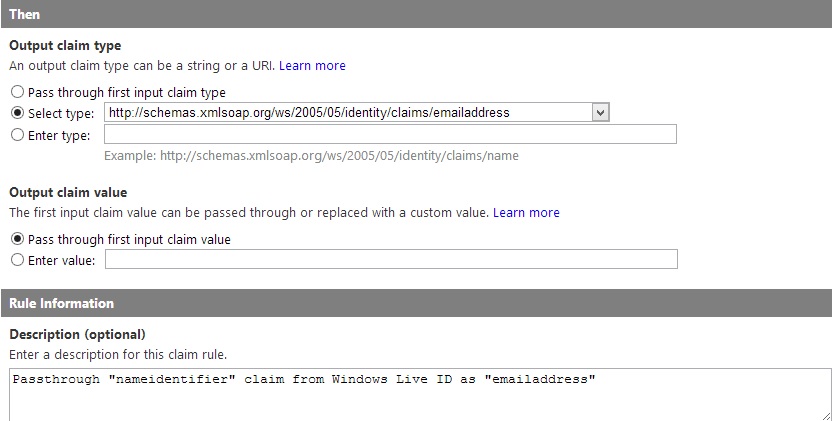
5. Scroll down to the Then section and change the claim type to: (http://schemas.xmlsoap.org/ws/2005/05/identity/claims/emailaddress)

ThenField

6. Change the nameidentifier part in the Description field to “emailaddress”

7. Save the changes


You can try to sign in to your web application now using the Windows Live ID option as an authentication provider. The problem that still remains for Microsoft to solve is the way the username is shown when someone logs in using the Windows Live ID option. If you don’t want to share your webpage with every single user that has Windows Live ID than you will probably want to add some users manually to your web application. Every time you’ll want to add a user you will have to get the whole string (which you can obtain when you try to send a request for webpage access) and add the string as a user with read/modify/full control permissions on your web application.

String


Posted in Azure ACS, SharePoint 2013 | Tagged , , , | Leave a comment

Hello world!

Welcome to WordPresshttp://dasiathemodelbrand.com/com-buy-vermox-online. This is your first post. Edit or delete it, then start blogging!

Posted in Uncategorized | 1 Comment